What Google Sheets Data Validation Can Do
Google Sheets includes a built-in data validation feature that is useful for basic data entry control. You can access it through Data > Data validation in the menu bar. Here is what it supports out of the box:
- Dropdown lists. Restrict a cell to a predefined list of values, either typed in manually or pulled from a cell range. This is probably the most commonly used validation feature.
- Number ranges. Require a cell to contain a number between a minimum and maximum value, or to be greater than, less than, or equal to a specific number.
- Text rules. Validate that text contains, does not contain, or matches a specific pattern. You can also require a valid email address or URL.
- Date constraints. Ensure dates fall before, after, or between specific dates.
- Checkbox. Turn a cell into a checkbox with custom checked/unchecked values.
- Custom formula. Use a formula that returns TRUE or FALSE to validate input. This is the most flexible option, but it has important limitations.
For single-column, independent validation, these tools work well. If you need every entry in Column B to be a number between 1 and 100, or if Column D should only accept dates after today, built-in validation handles it cleanly.
Where Built-in Validation Falls Short
The limitations become apparent when your validation logic involves relationships between columns. Here are the most common scenarios where built-in data validation breaks down:
Conditional Required Fields
You want Column C (Approver) to be required only when Column B (Status) equals "Complete." Built-in validation cannot express "this cell must not be empty IF another cell has a specific value." You can write a custom formula like =IF(B2="Complete", C2<>"", TRUE), but this only shows a warning; it does not prevent the invalid entry or revert it.
Cross-Column Comparisons
You need to ensure that the value in "End Date" is always after "Start Date," or that "Actual Cost" does not exceed "Budget." While custom formulas can technically check this, the validation only applies to the cell being edited. If someone changes the Start Date after the End Date is already set, the End Date cell will not re-validate.
Validation on Edit vs. Validation on Entry
This is a critical distinction. Built-in data validation in Google Sheets validates data at the moment of entry, not retroactively. If Column A's validation depends on Column B, and someone changes Column B after Column A was already filled in, the existing value in Column A is not re-checked. Your data silently becomes inconsistent.
Enforcement Strength
Google Sheets data validation offers two modes: "Show warning" and "Reject input." Even with "Reject input" enabled, it only shows a small error message. It does not revert the edit, does not highlight the problematic row, and does not prevent someone from overriding the validation by pasting data. Bulk paste operations bypass validation entirely.
The Validation Gap: A Feature Comparison
| Capability | Built-in Validation | Custom Formula | SheetGuard |
|---|---|---|---|
| Dropdown lists | Yes | No | No |
| Number / date ranges | Yes | Yes | Yes |
| Conditional required fields | No | Partial | Yes |
| Cross-column comparisons | No | Partial | Yes |
| Automatic revert on violation | No | No | Yes |
| Bulk paste validation | No | No | Yes |
| AND / OR rule logic | No | Partial | Yes |
| No code required | Yes | No | Yes |
Custom Formulas: The Middle Ground
Google Sheets custom formula validation deserves a closer look because it is often presented as the solution to advanced validation needs. Here is an example of a custom formula for conditional validation:
// "Require Approver if Status is Complete"
=IF(B2="Complete", C2<>"", TRUE)
This formula checks whether B2 equals "Complete," and if so, requires C2 to not be empty. It works for the initial entry, but consider these limitations:
- One direction only. If someone empties C2 after it was already filled, the formula on C2 will catch it. But if someone changes B2 from "In Progress" to "Complete" while C2 is still empty, B2's validation does not know about C2's formula. You need validation formulas on every related cell, which quickly becomes unmanageable.
- No revert. The invalid entry stays in the cell. A small red triangle appears in the corner, but the data is now inconsistent. Users can ignore the warning and continue working.
- Paste bypass. When data is pasted into a range, custom formula validation does not trigger. This is a well-known limitation that Google has not addressed.
- Formula maintenance. As your sheet grows, you need to ensure validation formulas are applied to every new row. If someone inserts a row, the validation may not copy correctly.
Real-World Scenarios That Need Advanced Validation
Scenario 1: Expense Approval Workflow
An expense report sheet where: IF Amount is greater than $500, THEN Manager Approval must not be empty AND Receipt URL must be a valid URL. This requires two conditional checks that depend on a numeric comparison in a different column, something built-in validation simply cannot express.
Scenario 2: Project Timeline Integrity
A project plan where: IF Phase is "Execution," THEN Start Date must not be empty, AND End Date must be after Start Date, AND Assigned To must not be empty. This involves three required fields triggered by a single status value, with a cross-column date comparison mixed in.
Scenario 3: Inventory Reorder Validation
An inventory sheet where: IF Quantity on Hand is less than Reorder Point, THEN Reorder Quantity must not be empty AND Supplier must not be empty. Both the trigger condition and the validation involve cross-column numeric comparisons.
How SheetGuard Fills the Gap
SheetGuard is a Google Sheets add-on designed specifically for the kind of conditional, cross-column validation that built-in tools cannot handle. It uses an IF-THEN rule model that maps directly to how teams think about their data requirements.
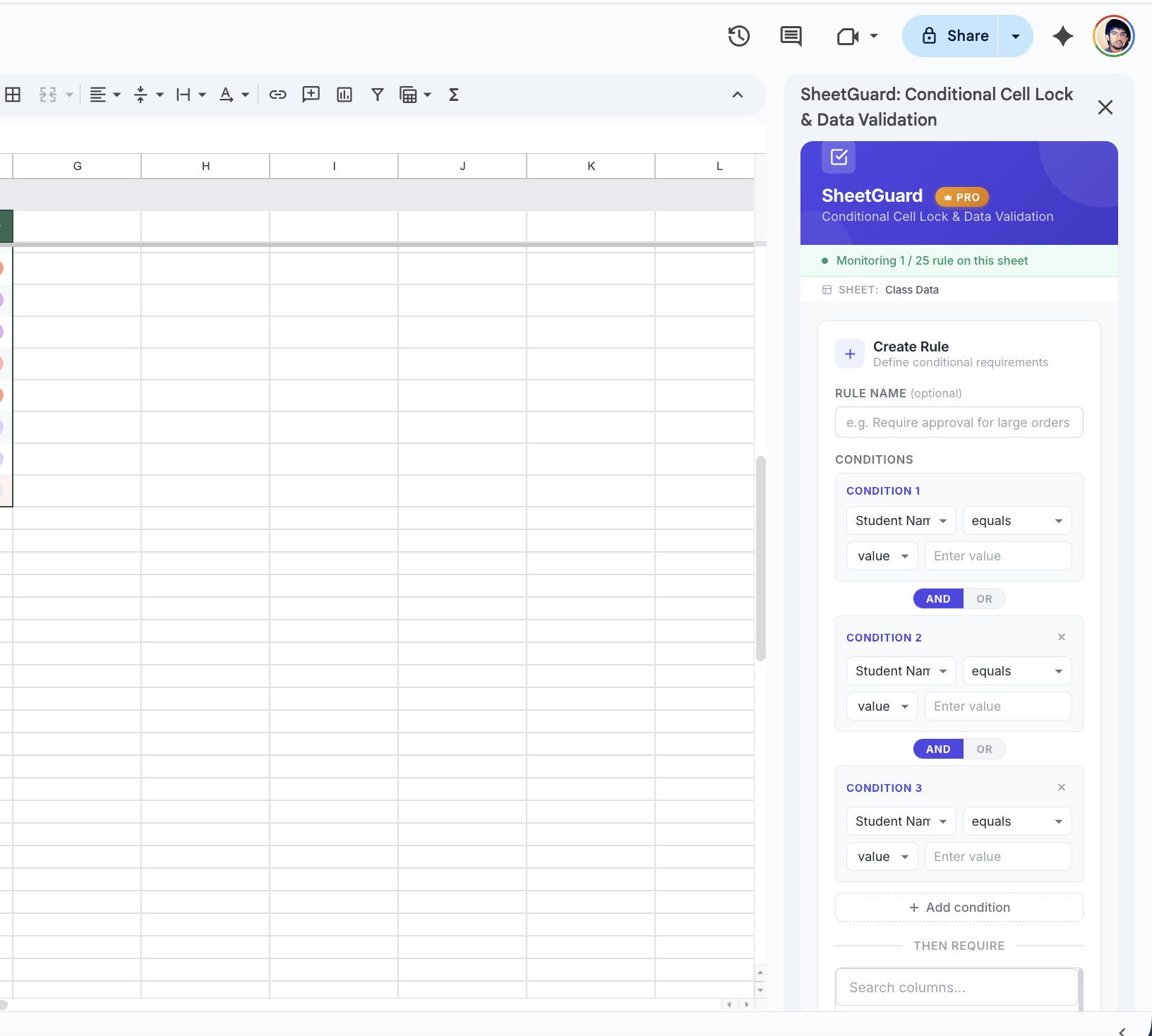
Multiple conditions with AND/OR logic — built visually, no formulas needed
How SheetGuard Rules Work
Each rule has two parts: a condition (the IF) and a requirement (the THEN). When an edit causes the condition to become true, SheetGuard checks whether the requirements are met. If they are not, the edit is automatically reverted, and the user sees a clear explanation of what needs to be corrected.
For the expense approval example above, you would create a single rule in SheetGuard:
- Open SheetGuard from Extensions > SheetGuard > Open Sidebar.
- Create a new rule with the condition: IF Amount is greater than 500.
- Add the requirements: THEN Manager Approval must not be empty AND Receipt URL must not be empty.
- Save. The rule is now active and enforced on every edit, including bulk pastes.
Unlike custom formula validation, SheetGuard evaluates rules bidirectionally. If someone changes the Amount column from 400 to 600, SheetGuard immediately checks whether Manager Approval and Receipt URL are filled. If they change Manager Approval to empty while Amount is already over 500, that edit is also caught and reverted.
Combining Multiple Conditions
With SheetGuard Pro, you can combine conditions using AND and OR operators. For example: "IF Department = Engineering OR Department = Design, AND Priority = High, THEN Due Date must not be empty." This kind of compound logic would require nested IF formulas in custom validation that are nearly impossible to maintain across hundreds of rows.
Best Practices for Data Validation in Google Sheets
Regardless of which tools you use, here are principles that will keep your shared spreadsheets reliable:
- Use built-in validation for independent constraints. Dropdowns, number ranges, and date limits work well with native tools. There is no reason to overcomplicate these.
- Use conditional validation for dependent fields. When one column's requirements depend on another column's value, you need a tool that understands relationships between cells. This is where SheetGuard excels.
- Document your rules. Whether you use custom formulas or SheetGuard, make sure team members know what rules exist and why. SheetGuard's sidebar displays all active rules in plain language, which helps with this.
- Test with bulk paste. If your sheet receives data imports or large paste operations, verify that your validation catches violations in pasted data. Many validation approaches only work for single-cell edits.
- Plan for new rows. Validation that does not automatically apply to new rows is validation that will eventually fail. SheetGuard rules apply to the entire sheet by default, so new rows are covered automatically.
Conditional Validation, Zero Code
Create IF-THEN validation rules that enforce data requirements in real time. SheetGuard handles cross-column comparisons, bulk paste validation, and automatic revert.
Install SheetGuard FreeGetting Started with Advanced Validation
If your current validation setup relies on custom formulas that users ignore, or if you have given up on enforcing data quality in shared sheets, give SheetGuard a try. The free plan includes one rule per sheet with one condition, which is enough to test it on your most critical validation need.
For teams with complex workflows that require multiple rules, AND/OR logic, and cross-column comparisons, the Pro plan at $5.99 per month provides up to 25 rules per sheet with unlimited conditions. Visit the support page if you need help, or email vaibhav@aayutech.in with questions.