The Problem: Google Sheets Protection Is Binary
If you have ever managed a shared Google Sheet, you know the frustration. Google Sheets lets you protect a range or an entire sheet, but the protection applies to every row in that range, all the time. There is no built-in way to say "lock this row only when the Status column says Approved."
This creates a real workflow problem. Consider a project tracker where team members fill in task details, hours, and notes. Once a manager sets the status to "Approved," those rows should be frozen so nobody accidentally changes a completed record. With native Google Sheets protection, your options are limited:
- Protect the entire column. This prevents all edits, not just the ones in approved rows. Team members can no longer update tasks that are still in progress.
- Manually protect individual rows. This is technically possible but wildly impractical. Every time a status changes, someone has to open the protection settings and adjust the range. In a sheet with hundreds of rows, this is unsustainable.
- Use filter views as a workaround. This hides approved rows from view but does not actually prevent edits. Anyone who removes the filter can change anything.
None of these approaches give you what you actually need: conditional cell locking based on a cell value.
The Manual Approach: Apps Script
Google Apps Script can bridge this gap. You can write an onEdit trigger that checks whether a specific column matches a value and then programmatically adds or removes protection. Here is a simplified example:
var sheet = e.source.getActiveSheet();
var range = e.range;
var row = range.getRow();
var statusCol = 5; // Column E = Status
var statusValue = sheet.getRange(row, statusCol).getValue();
if (statusValue === "Approved") {
var protection = sheet.getRange(row, 1, 1, sheet.getLastColumn())
.protect()
.setDescription("Row locked - Approved");
protection.removeEditors(protection.getEditors());
protection.addEditor(Session.getEffectiveUser());
}
}
This works, but it comes with significant drawbacks:
Execution Quotas and Speed
Apps Script has execution time limits. The onEdit simple trigger runs with limited permissions, meaning it cannot reliably manage protections for other users. You need an installable trigger, which requires the sheet owner to set it up manually through the script editor.
Maintenance Burden
Every time your spreadsheet structure changes (columns are added, renamed, or reordered) you need to update the script. If the person who wrote the script leaves the team, the remaining members may have no idea how to modify it. For non-technical teams, this is a non-starter.
No Bulk Paste Handling
The onEdit trigger fires once per edit event. When someone pastes 200 rows at once, the trigger receives a single event for the entire paste range. Your script needs complex logic to iterate through every pasted row, check conditions, and apply protections individually, all within the execution time limit.
No Revert Mechanism
Native Apps Script protection prevents future edits, but it does not revert an edit that already happened. If someone changes a cell value from "Approved" to something else before the protection kicks in, you have lost data integrity. There is a race condition between the edit and the protection being applied.
Practical Examples of Conditional Cell Locking
Before exploring solutions, let us look at the most common scenarios where teams need value-based cell locking:
Example 1: Lock Row When Status = "Approved"
A project management sheet where rows should become read-only once a task is marked as approved. This prevents team members from accidentally modifying completed work or changing historical records.
Example 2: Require Sign-Off Before Allowing Status Change
An expense tracker where the "Approved By" column must contain a name before the "Status" column can be changed to "Paid." This enforces an approval workflow directly within the spreadsheet.
Example 3: Lock Cells When Amount Exceeds a Threshold
A budget sheet where any line item over $10,000 requires a manager's review. Once the amount is entered, the row should lock until a review column is filled in, preventing unauthorized changes to high-value entries.
Example 4: Prevent Backdating
An operations log where the date column should not be editable once set. If the "Completion Date" has a value, no one should be able to change it, ensuring the integrity of your timeline records.
The No-Code Solution: SheetGuard
SheetGuard is a Google Sheets add-on built specifically to solve the conditional cell locking problem without writing a single line of code. Instead of maintaining Apps Script functions, you create rules through a visual sidebar interface.
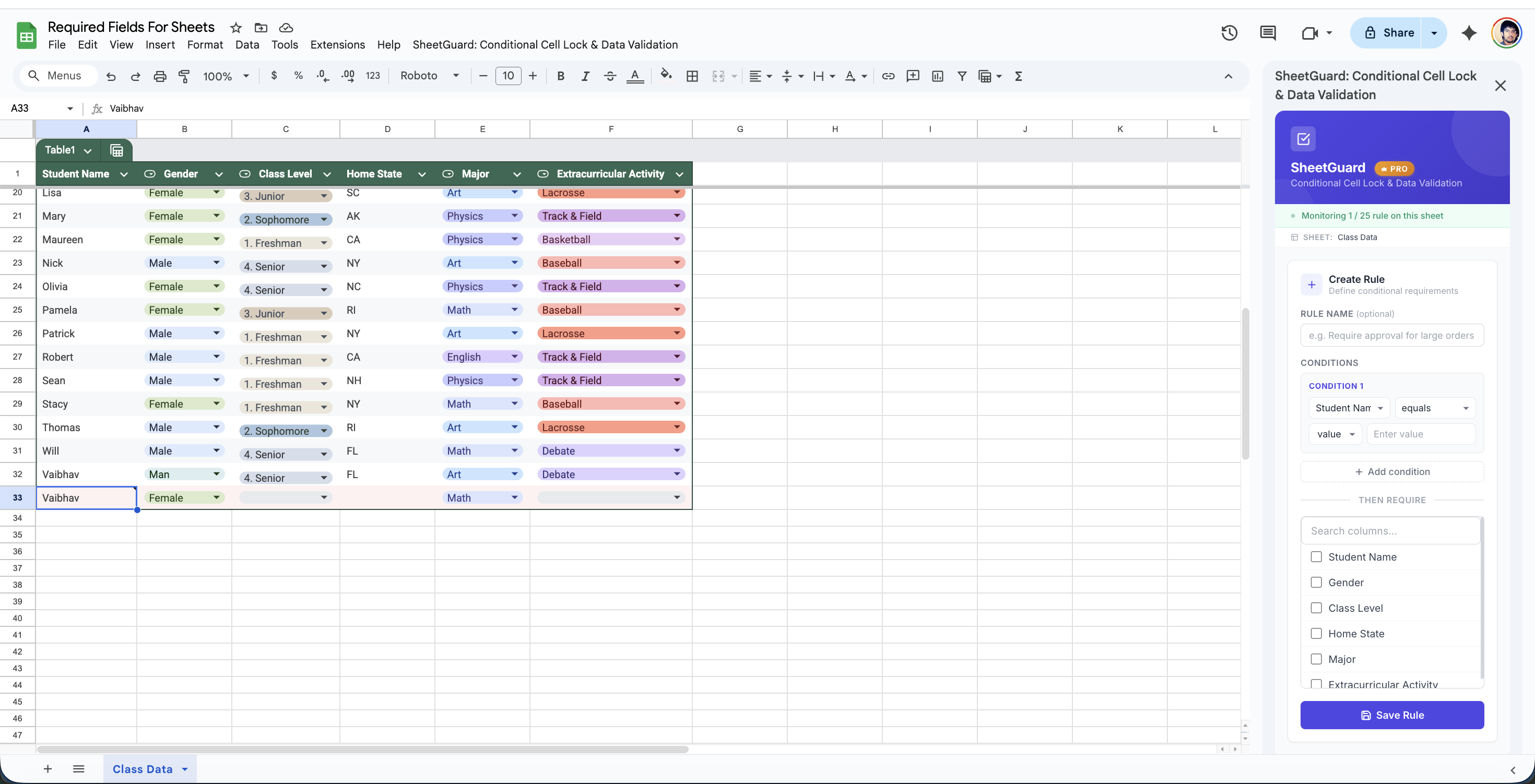
SheetGuard's visual rule builder — no code required
Here is how you would set up the "lock row when approved" example:
- Open your Google Sheet and go to Extensions > SheetGuard > Open Sidebar.
- Click New Rule and set the condition: IF Status equals "Approved".
- Set the required action: THEN lock the row (or require specific columns to have values before the status can change).
- Save the rule. SheetGuard immediately starts enforcing it on every edit.
How SheetGuard Differs from Native Protection
Unlike Google Sheets built-in protection, SheetGuard evaluates conditions in real time. When an edit violates a rule, SheetGuard automatically reverts the change and shows a clear explanation of what went wrong. There is no race condition, and bulk pastes are validated row by row with violations highlighted in red.
Cross-Column Comparisons
SheetGuard's Pro plan supports cross-column comparisons. You can create rules like "IF End Date is before Start Date, THEN revert the edit" or "IF Invoice Amount is greater than Budget, THEN require Manager Approval." These comparisons happen automatically on every edit without any scripting.
AND / OR Logic
Real-world workflows rarely depend on a single condition. With SheetGuard Pro, you can combine multiple conditions. For example: "IF Status = Approved AND Department = Finance, THEN require Audit Reference." This level of conditional logic would require dozens of lines of Apps Script code to implement manually.
When to Use Each Approach
To summarize, here is a comparison to help you decide which method fits your needs:
- Native Google Sheets protection works well when you need to lock an entire sheet or a fixed range permanently. It is free and built in, but it cannot react to cell values.
- Apps Script is a good choice if you have a developer on your team, your requirements are highly custom, and you are comfortable maintaining code long-term. Be aware of execution limits and the maintenance overhead.
- SheetGuard is ideal for teams that need conditional locking without technical complexity. It takes minutes to set up, works instantly, handles bulk pastes, and requires zero code. The free plan covers basic use cases with one rule per sheet.
Lock Cells Based on Value, No Code Required
Set up conditional cell locking in under two minutes. SheetGuard enforces your rules in real time with automatic revert on violations.
Install SheetGuard FreeGetting Started
If you are ready to move beyond the limitations of native Google Sheets protection, install SheetGuard from the Google Workspace Marketplace. The free plan lets you create one rule per sheet with one condition, which is enough to cover the most common conditional locking scenarios.
For teams that need multiple rules, AND/OR logic, or cross-column comparisons, the Pro plan is available at $5.99 per month. If you have questions or need help setting up your first rule, visit our support page or email us at vaibhav@aayutech.in.